Data Table - Design
Displays tables of data
Live Demo
| Size | Chest | Body Length |
| Small | 40" | 28" |
| Medium | 40" | 29" |
| Large | 44" | 30" |
| Extra Large | 48" | 31" |
| 2XL | 52" | 32" |
| 3XL | 56" | 33" |
This is an example of a data table taken straight from our site. Click the "See in Page" button to see it in action. You can find it under the "Size Chart" accordion.
Usage
Data tables are used for displaying a table of data. That was really redundant, but it's that straight forward. If you have a set of data that should be displayed in a table format, this is the component to use.
Anatomy
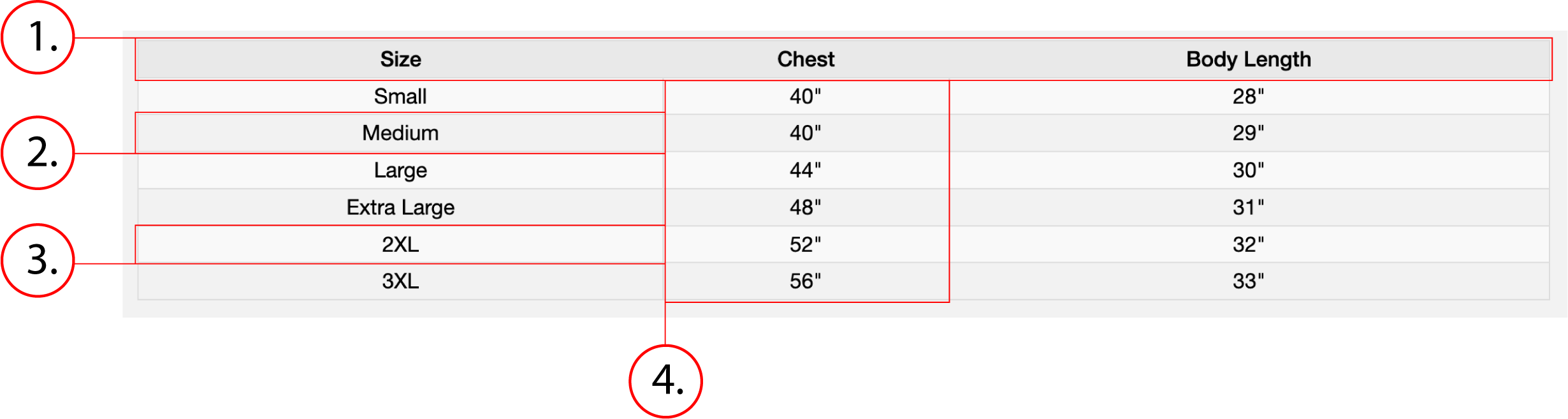
2. Even table cell
3. Odd table cell
4. Table column
Behavior
Data tables stretch horizontally to fit 100% of their container. They stretch vertically to fit the content of the table. There are no interactive events such as hover or click.
Data Table - Implementation
Displays tables of data
Implementation
Below is the HTML and CSS for a data table implementation, as well as a demo of what it would produce.
<table class="table table-bordered">
    <thead class="table_header">
        <tr class="align-center">
            <td>Header Cell 1</td><td>Header Cell 2</td>
        </tr>
    </thead>
    <tbody>
        <tr class="align-center">
            <td>Body cell 1</td><td>Body cell 2</td>
        </tr>
    </tbody>
</table>| Header Cell 1 | Header Cell 2 |
| Body cell 1 | Body cell 2 |
.table-bordered {
    border: 1px solid #ddd;
}
.table {
    width: 100%;
    max-width: 100%;
    border-spacing: 0;
    border-collapse: collapse;
    background-color: transparent;
    margin: 0;
    font-family: "Helvetica Neue",Helvetica,Arial,sans-serif;
}
.table_header {
    font-weight: 500;
    background: #e9e9e9;
}
.align-center {
    text-align: center!important;
}
.table>tbody>tr>td, .table>tbody>tr>th, .table>tfoot>tr>td, .table>tfoot>tr>th, .table>thead>tr>td, .table>thead>tr>th {
    padding: 2px;
    line-height: 1.42857143;
    vertical-align: top;
    border-top: 1px solid #ddd;
}
.table>tbody>tr:nth-of-type(odd) {
    background-color: #f9f9f9;
}
.table-bordered>tbody>tr>td {
    border: 1px solid #ddd;
}
In order to add more cells to a row, add a <td> tag to the <tr> tag of the row you want it in. To add new rows, add a <tr> tag into the <tbody>, which is where data should be entered. Make sure new rows have the "align-center" class like the ones you see in the implementation above. Below is an example of a the above implementation with added content.
<table class="table table-bordered">
    <thead class="table_header">
        <tr class="align-center">
            <td>Size</td><td>Weight</td><td>Color</td>
        </tr>
    </thead>
    <tbody>
        <tr class="align-center">
            <td>Big</td><td>10</td><td>Red</td>
        </tr>
        <tr class="align-center">
            <td>Medium</td><td>5</td><td>Blue</td>
        </tr>
        <tr class="align-center">
            <td>Small</td><td>1</td><td>Green</td>
        </tr>
    </tbody>
</table>| Size | Weight | Color |
| Big | 10 | Red |
| Medium | 5 | Blue |
| Small | 1 | Green |